Three things before you begin:
Nothing you do in this app is shared with probation, parole, or any agency. There is no agency-facing view. It does not exist.
It is free to start. No card, no trial clock, no time limit.
It is on the App Store and Google Play. It also runs in your phone's browser if you would rather not install anything.
1. Getting it on your phone
Download it from the App Store or Google Play — that is the version that can send you reminders. If you would rather not install anything, you can add the website to your home screen instead; those steps are below.
iPhone or iPad (Safari)
- Open app.freeandforward.com in Safari.
- Tap the Share button at the bottom of the screen.
- Scroll down and tap Add to Home Screen.
- Tap Add. The icon lands with your other apps.
Android (Chrome)
- Open app.freeandforward.com in Chrome.
- Tap the three-dot menu in the top right.
- Tap Install app or Add to home screen.
- Confirm. The icon lands with your other apps.
You can also do this later from Settings → Add to your phone.
2. The first screen
You will be asked to choose English or Español. You can change it anytime in Settings — it does not lock you in.
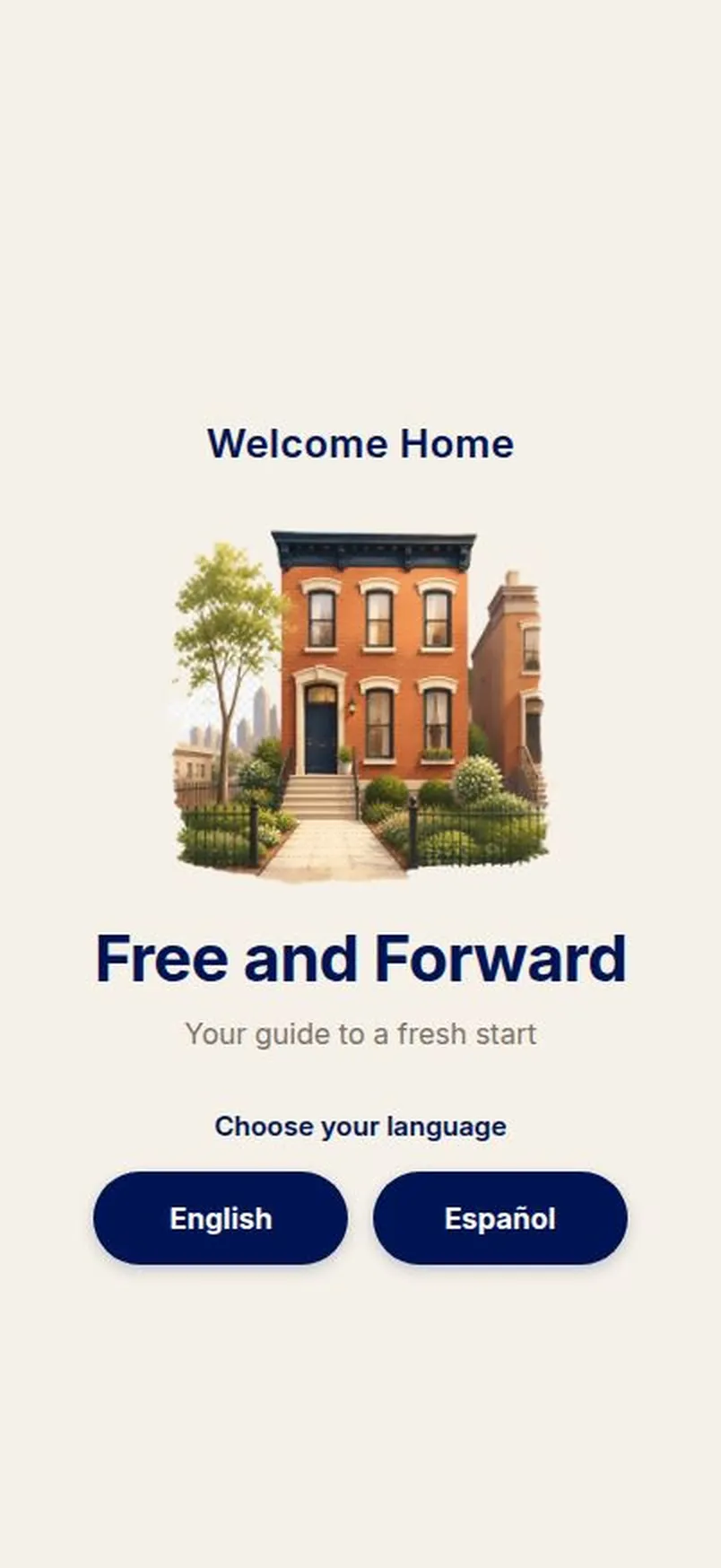
The first screen — pick your language, then choose how you want to start.
Then you have three ways in:
- Click to enter — you will still be asked to create an account or sign in before you can start. There is no way to use the app without one.
- Sign In — you already have an account.
- Create account — free, and it backs up your progress, syncs it to another device, and is what lets reminders reach you once the app is on your phone.
There is no guest mode. You need an account to use the app. Creating one is free and takes about a minute, and it is what backs up your progress, syncs it between devices, and lets reminders reach you — so nothing is lost if your phone is lost or wiped.
3. Setting up — about two minutes
Four short screens. Skip for now is on every one of them, and skipping nothing breaks.
Tell us about yourself
First name, last name, city, state, and your release date.
City and state matter more than they look. State decides which resources you see, because rules and services differ by state — and your city and state together are how the job board knows which area to search. Enter them accurately, or the jobs you are shown may be for the wrong area. The app never detects your location — you choose it, and you can change it in Settings.
Release date does two things: it sets the deadlines on your checklist, and it helps surface jobs near you.
What are your strengths?
Pick any skills you have. This is what the job board matches against. You can add more at any time — it is not a one-shot question.
What do you want to work toward?
Ten starter goals to choose from — steady work, a strong resume, training or a certificate, stable housing, your ID and documents, finances, health, a support system, staying on top of your requirements, savings. Pick any that fit. You can add your own later.
One date
The last screen asks you to name one thing coming up — a check-in, a court date, or a goal — and puts it on your calendar right then with a reminder already set.
- A time is optional. The day on its own is enough.
- Choose the type: Check-in, Court date, or Goal.
- If you are on the web rather than the installed app, the date saves and syncs, but the reminder itself comes through the phone app.
4. Home
Your starting screen every time you open the app.
- A greeting and where you are: Day 12 on your journey, or Release in 30 days if you are not out yet.
- Your progress — how many of your steps are done, and how many are left.
- Quick numbers — steps done, jobs saved, applications logged, documents stored.
- Coming up — your next events and deadlines, with anything overdue marked in days.
- Progress by area — how far along you are in each part of the checklist.
- Quick actions — one tap to My Steps, Build Resume, Browse Jobs, Document Vault, Applications, My Goals, and Export My Data.
5. Steps — your checklist and calendar
Free. No card, no limit.
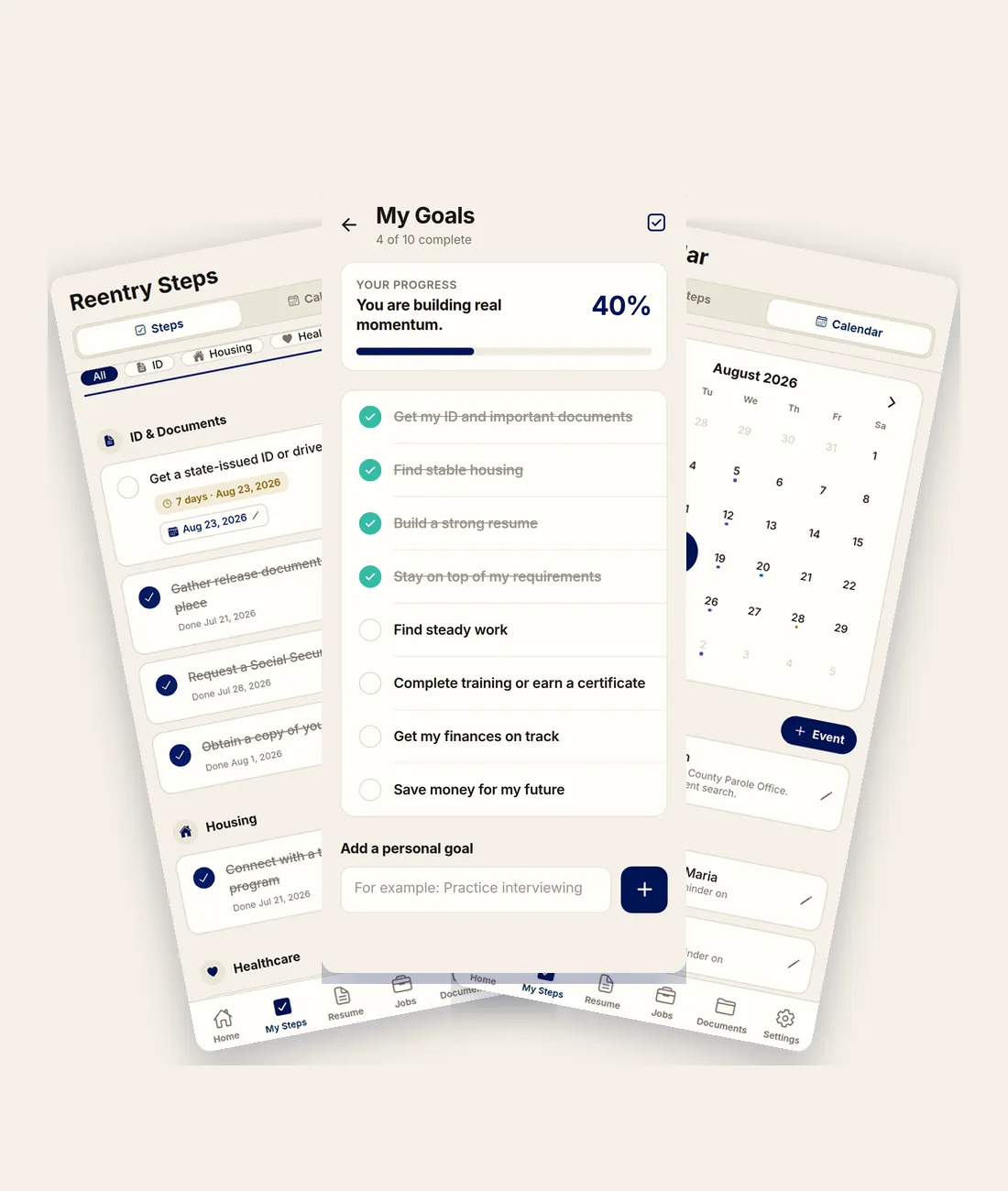
Goals, the 27-step checklist, and the calendar.
This is the heart of the app. Twenty-seven steps in the order they actually have to happen, with real due dates, grouped into ID & documents, Housing, Employment, Legal & supervision, and anything else you add.
There is a toggle at the top: Steps or Calendar.
Working your steps
- Tap a step to mark it done.
- Set a due date on any step, or clear one.
- Set priority — high, medium, or low.
- Add notes — addresses, phone numbers, whatever you need with it.
- Add your own step for anything the standard list does not cover, and put it in an existing section or a new one you name (Family, Education, whatever fits).
Overdue steps are marked — 1 day overdue, 4 days overdue — so nothing quietly slips.
The calendar
Tap Add event to add anything: a check-in, a court date, a shift, a family thing.
- Title, date, and time — or turn on All day when there is no specific hour.
- Event type: Standard event, Court date, or Mandatory check-in.
- Repeat: once, daily, weekly, or monthly.
- Color, so you can see at a glance what kind of week you have.
- Reminder, with a lead time you choose: at event time, 15 minutes, 1 hour, 3 hours, 1 day, or 1 week before.
Court dates get an extra reminder automatically — one the day before, on top of whatever you set. That one is not optional, and it is deliberate.
Which lead time to pick: 1 day before is usually the right one. It is the only one that leaves you time to arrange a ride, childcare, or time off work.
About reminders
Event reminders are free, and they come from your phone. They are delivered by the installed app, so Free and Forward has to be on your home screen for one to reach you.
On the web, the date saves and syncs to your account — but the reminder needs Free and Forward installed on your phone. Add it to your home screen and your dates come with you.
Deadline reminders on checklist steps arrive as app notifications on your phone, on the free plan. Email reminders start at Basic — those are sent from our side, which is why they sit in a paid tier.
If a reminder cannot be set, the app tells you so on the event rather than failing silently.
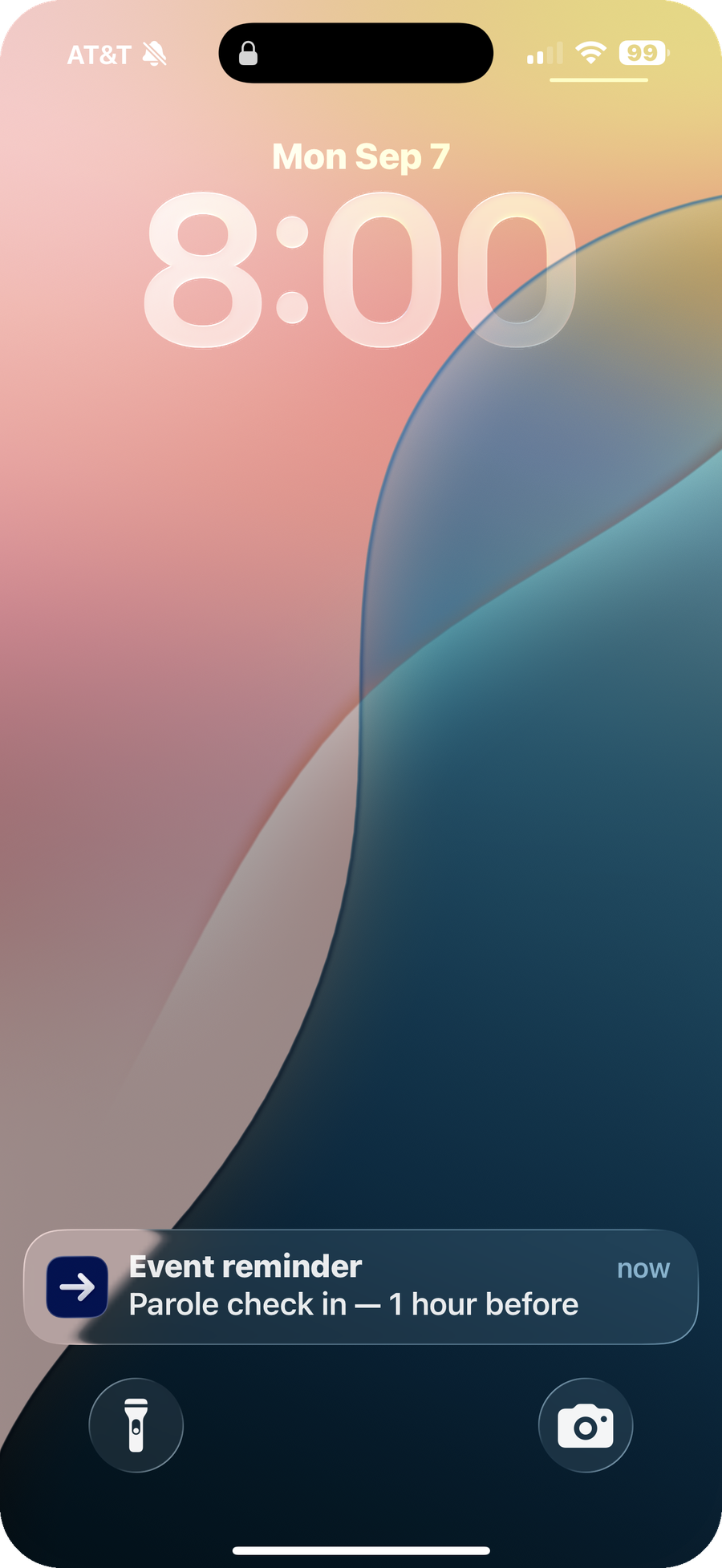
What it looks like when one lands — on the lock screen, an hour before the check-in.
6. Goals
Free.
Separate from the checklist. The checklist is what you have to do; goals are what you are working toward.
- Ten starter goals, plus any you write yourself.
- A progress bar that moves as you complete them.
- Tap to mark complete, or delete one you no longer want.
7. Resources
Free on every tier.
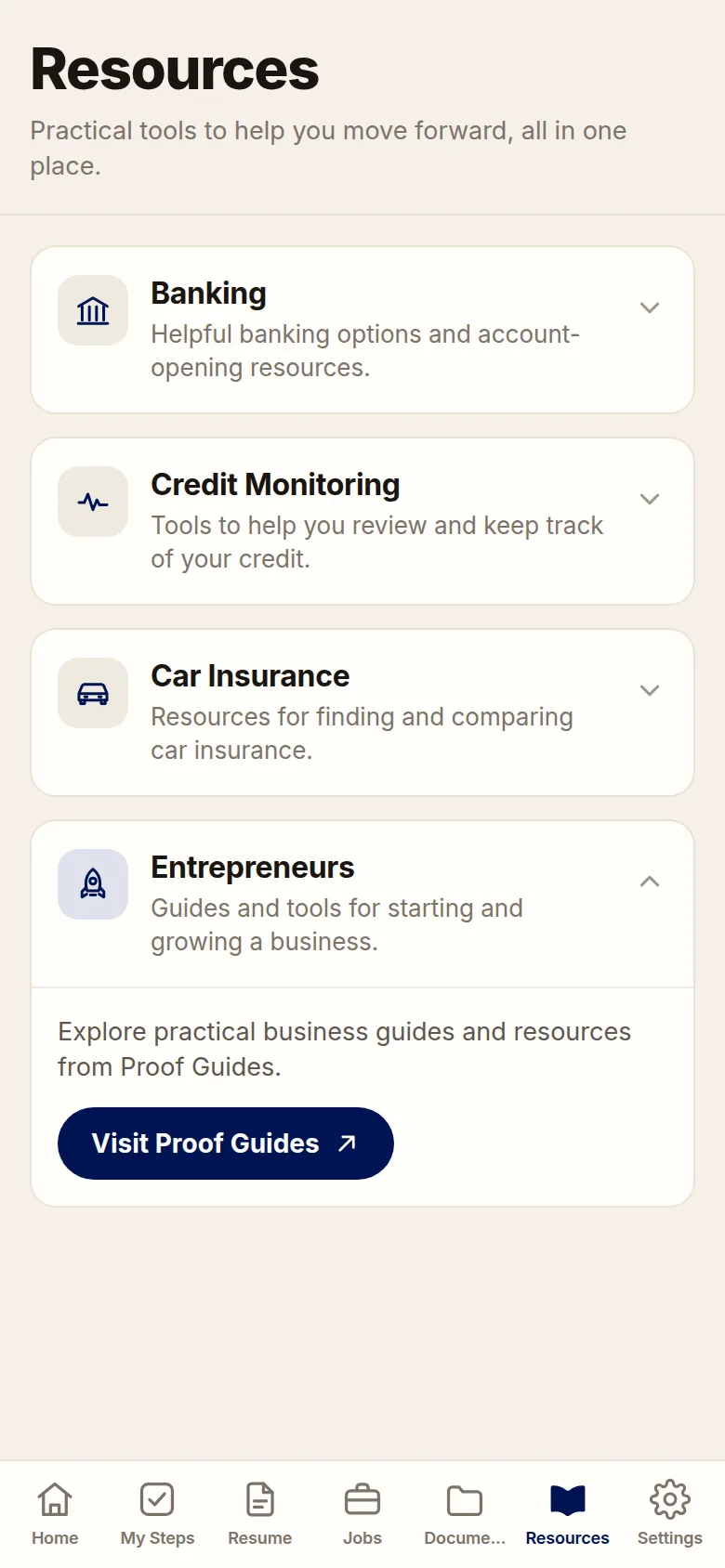
Resources, sorted by category and tailored to the state you chose.
Practical help, sorted by category, and tailored to the state you chose:
If something goes wrong · Fines, fees and restitution · Know your conditions · Health coverage and prescriptions · Driver's license · Help for employers who hire you · Occupational licensing · Transportation · Child support · Housing · Benefits · Education · If you are not a US citizen
There are also three featured partners — credit building, car insurance, and business guides — for the things that are hard to get with no credit history and a record. These are clearly marked as partners.
If you have not set your state yet, do it here or in Settings. Some of what is listed is state-specific and you will miss it otherwise.
8. Docs — your Document Vault
The vault is Basic. Your checklist, calendar and resources stay free whether you add it or not. What it does: photos of your ID, birth certificate, release papers and certificates, encrypted on your phone.
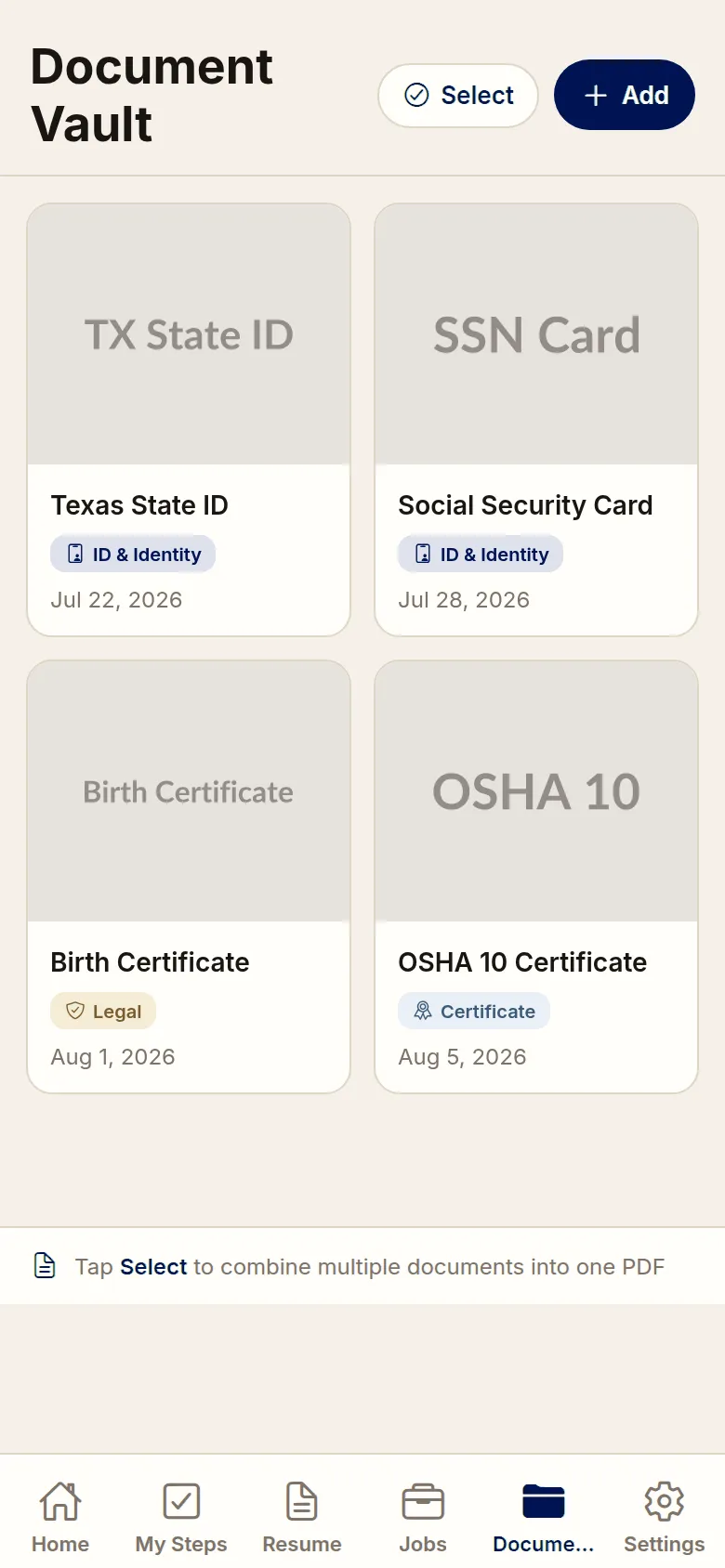
The vault — your ID, birth certificate and release papers, encrypted on your phone.
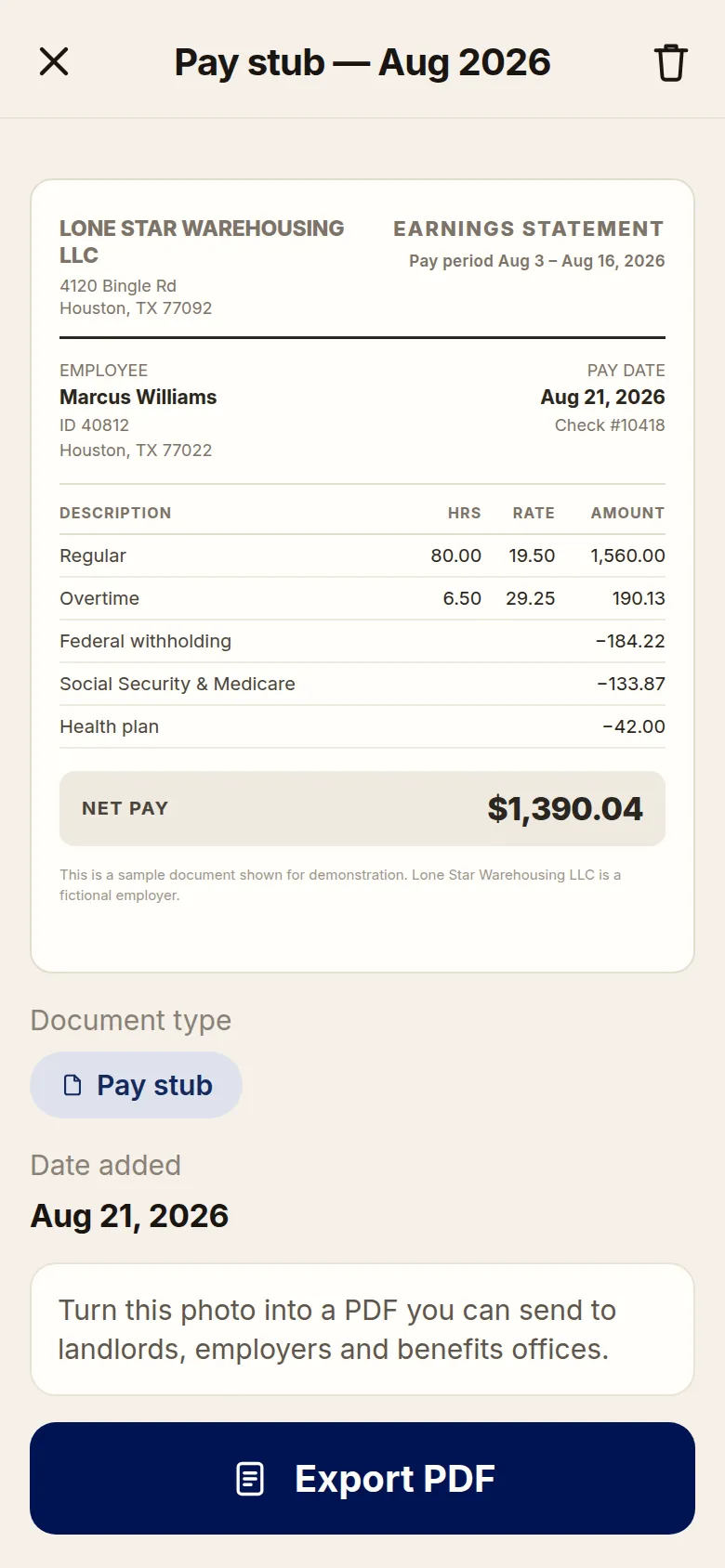
Turning a photographed pay stub into the PDF an office will accept.
Setting up the vault, once
The first time you open it, you enter your account password and it creates your vault key. Then it shows you a recovery key.
Write the recovery key down and keep it somewhere safe. It is shown once and never again. If you lose both your password and that key, nobody — including us — can open your documents. We only ever hold the scrambled file. The key that unlocks it never leaves your phone.
Adding a document
Tap Add, then choose:
- Scan document — finds the page edges and crops it for you. Best for flat paperwork.
- Camera — take the photo yourself and crop it.
- Photo Library — use a photo you already have.
Then give it a name you will recognise later (State ID, Birth Certificate), pick a type — ID & Identity, Legal, Certificate, Pay stub, or Misc — and save it into a section: Identity, Legal, Certificates, Pay stubs, or Other.
Turning photos into a PDF
This is the format POs, landlords, lenders and benefits offices actually ask for.
- Tap Select.
- Tap the documents you want. Hold and drag to reorder — the PDF pages come out in the order you selected.
- Tap Combine to make one PDF from all of them, or PDF to convert a single photo.
- Share it or save it wherever you need it.
Resumes and cover letters you generate get saved here too, under Saved copies.
9. Resume
The builder is Basic and the AI writing is Premium. Everything you have already built — your steps, dates and goals — keeps working either way.
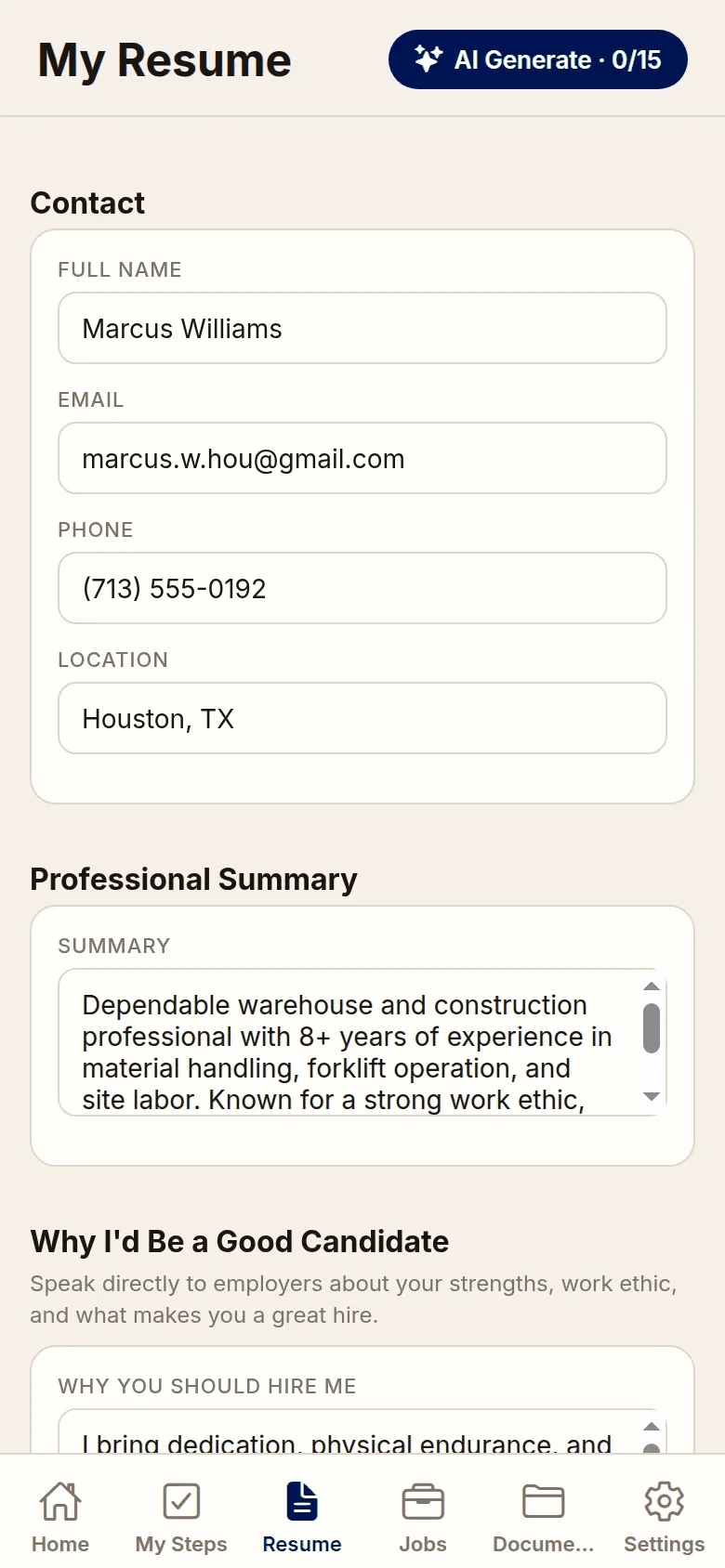
The builder — work history, skills, and a clean PDF. No AI needed.
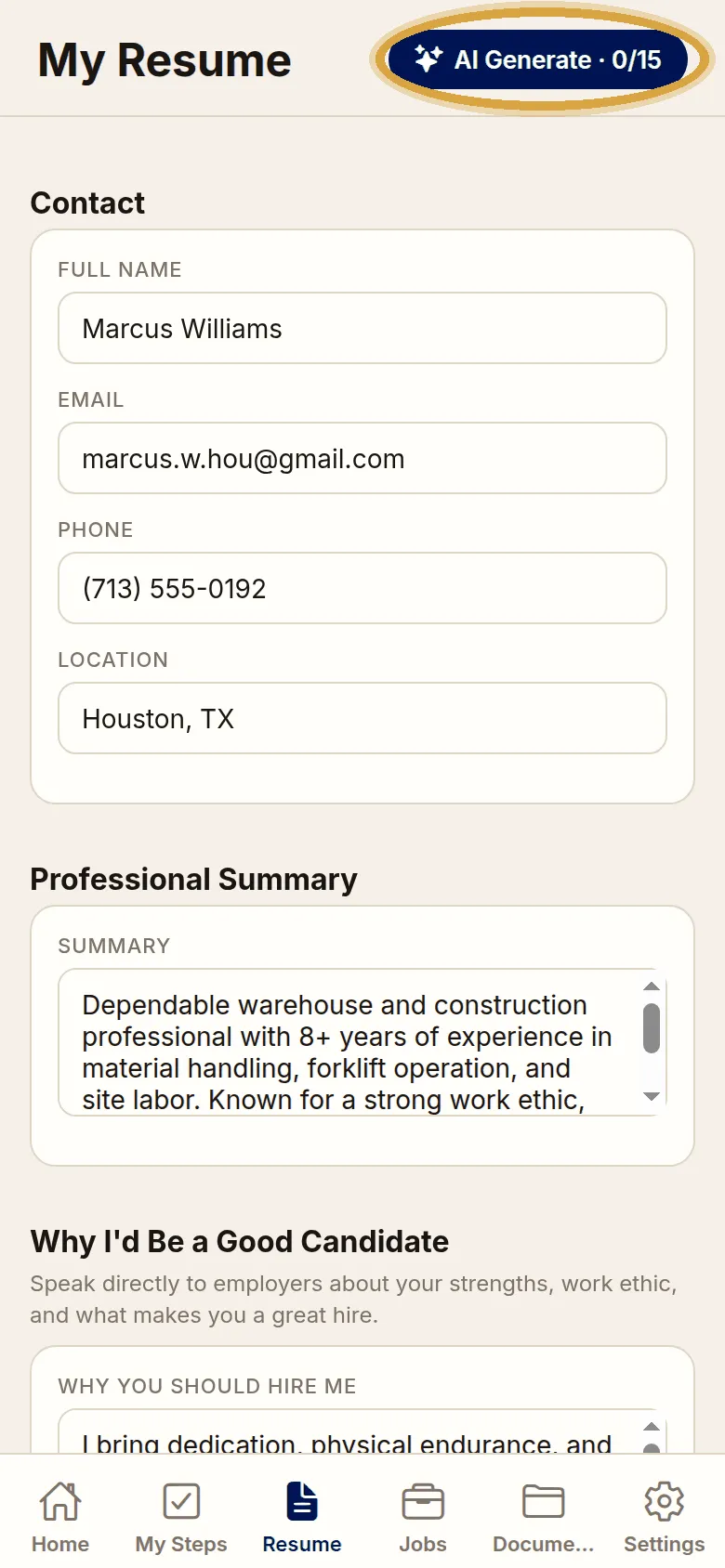
The AI writer on Premium, handling a gap in work history.
Filling it in
Seven sections:
- Contact — name, email, phone, city and state
- Professional Summary — two or three sentences on what you bring
- Skills
- Work History — job title, organization, start and end year, what you did. Any job counts — inside or out, paid or volunteer, however brief.
- Education & Training — GED, high school, degrees, vocational programs, anything you completed or started
- Accreditations & Certifications — OSHA 10, forklift, ServSafe, and the like
- Custom Sections — community involvement, leadership, references, awards, anything else that tells your story
Building it — no AI, no internet, no credits
Tap Build my resume and it makes a professional PDF from exactly what you typed. Nothing added, nothing changed, nothing invented.
To build, it needs your name, an email or phone so employers can reach you, and at least one of: a summary, skills, work history, education, a certification, or a custom section. If something is missing it tells you exactly what.
Then Share PDF, or Save to Docs to keep a copy in your vault.
Generating it with AI — Premium
If you have Premium, Generate My Resume with AI asks you five questions and writes both a resume and a cover letter from your answers:
- Any job you have held — inside or out, paid or volunteer
- Programs, training, or certifications
- What you are most proud of
- What kind of work you are aiming for
- Anything about gaps you want handled tactfully
Costs 2 credits per generation. Regenerating charges again — the cost is shown on the button before you tap it, so nothing is a surprise.
Before you regenerate: it overwrites your current AI resume and cover letter. If you want to keep the old one, use Save to Docs first. The app offers you this — take it.
If you have written your own Professional Summary, it asks whether to keep yours or use the AI version. It does not overwrite your words without asking.
10. Jobs
The job board is Plus and AI Match is Premium. The resume you write is yours on any tier, and you can take it to any employer without this.
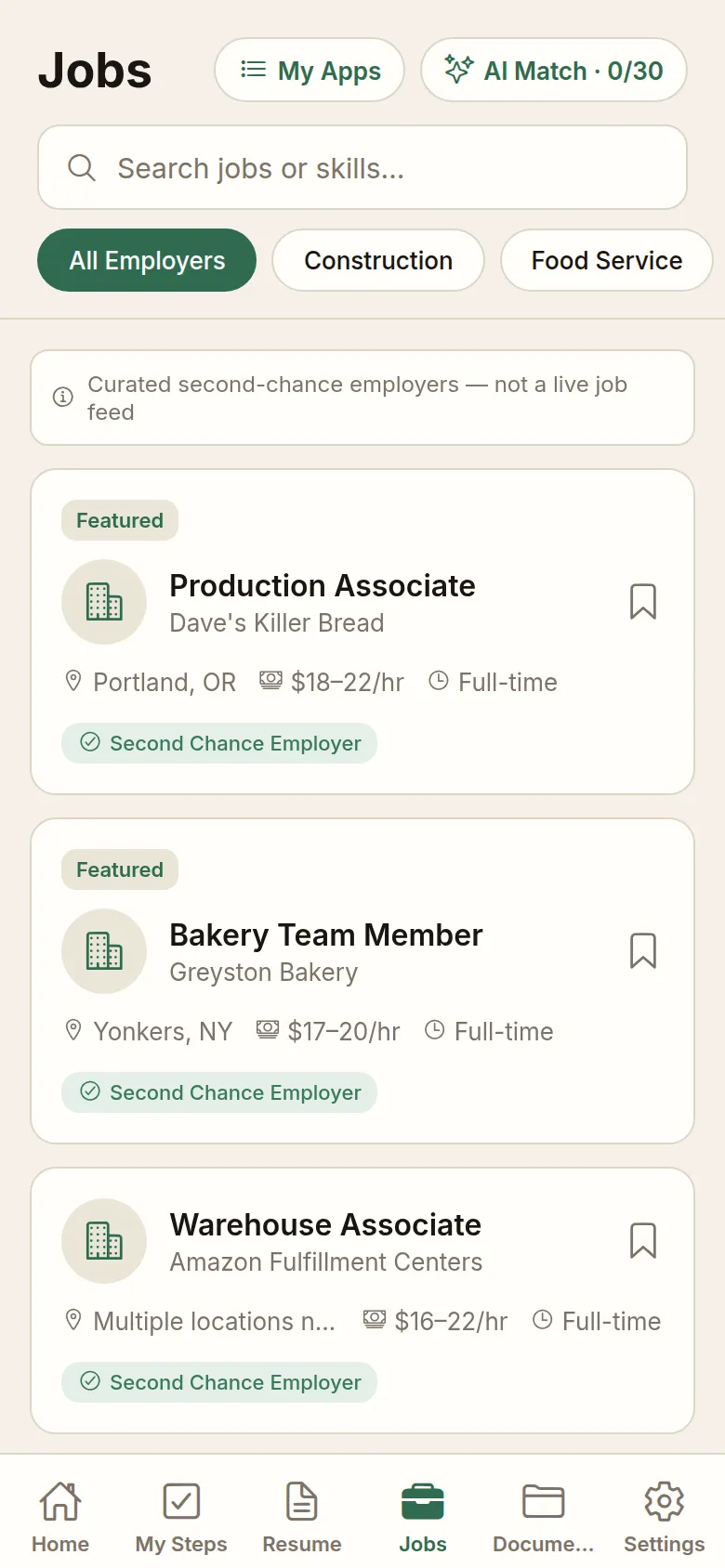
The job board — curated second-chance employers, with pay and location.
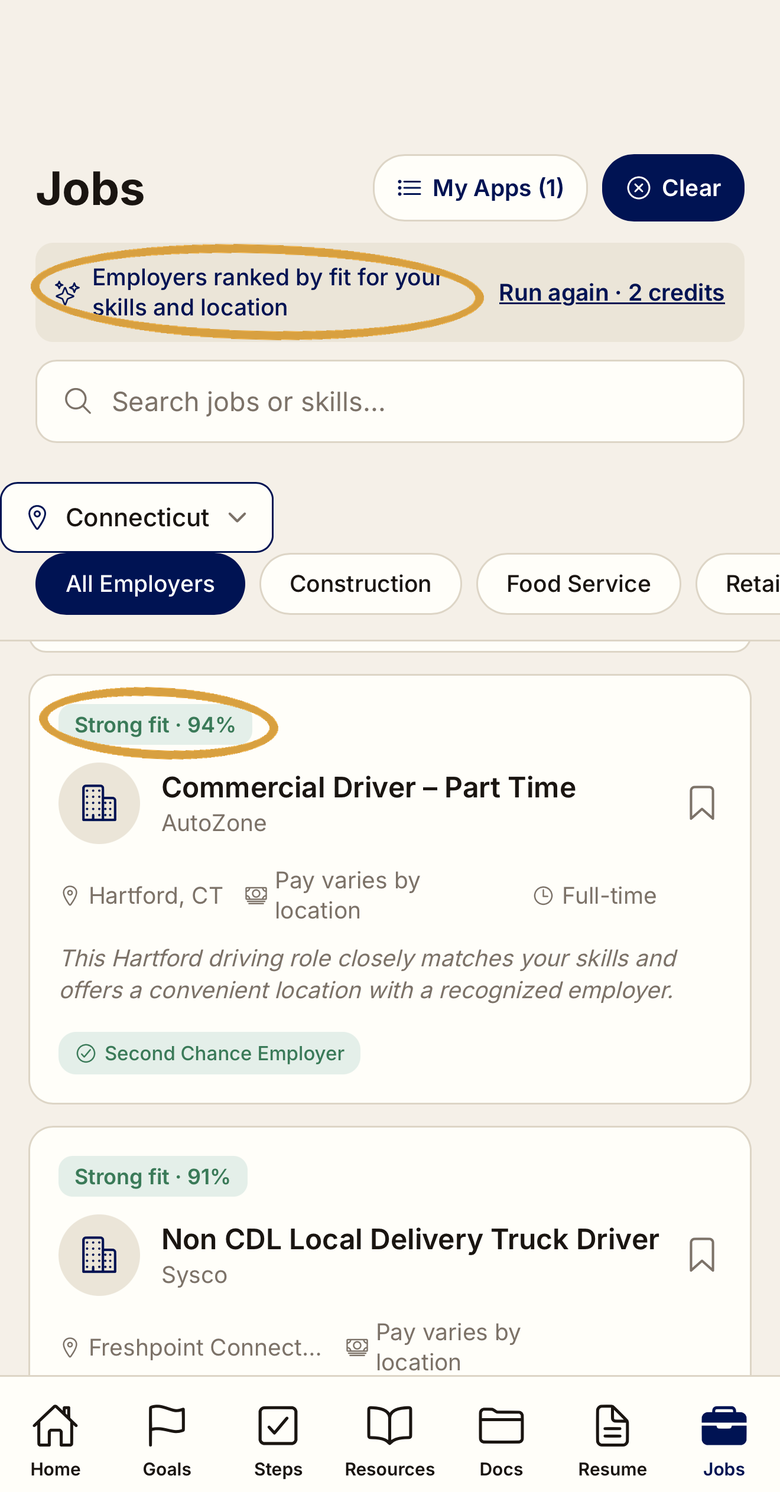
AI Match ranking second-chance employers against your resume — Strong fit, with the percentage and the reason it matched.
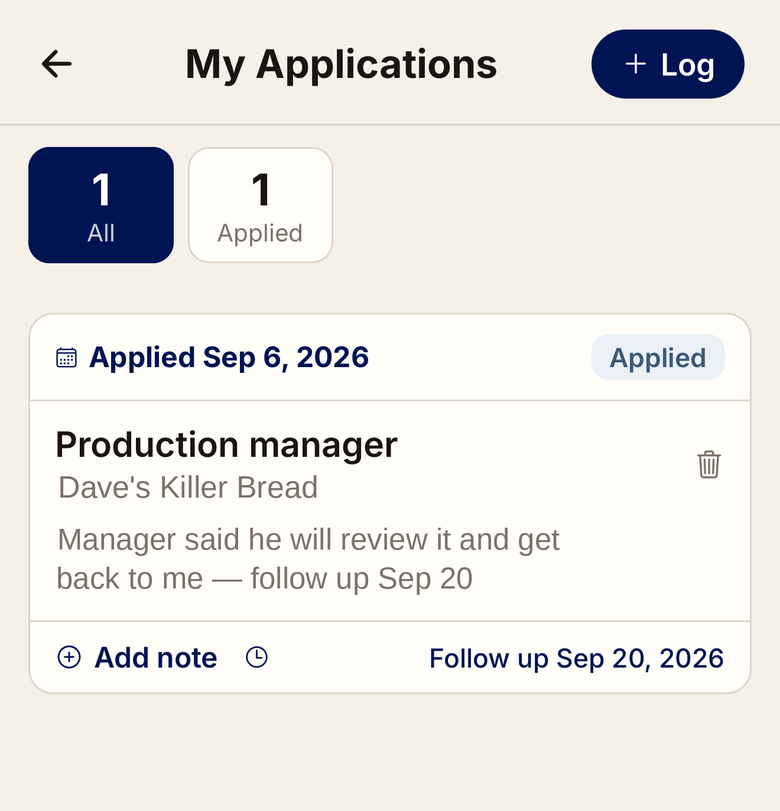
My Apps — every job you applied to, its status, your notes, and when to follow up.
Curated second-chance employers — companies that actually hire people with records. This is a vetted list, not a scraped live feed, which is the point.
- Search by job or skill.
- Filter by state and by category.
- Tap a listing for location, pay, type, what the employer is like, and the skills that matter for it.
- Visit Careers Page takes you to their own application.
AI Match — Premium
Tap AI Match and it ranks the employers against your resume, skills and location, and labels each one Strong fit, Good fit or Possible fit with a percentage. Costs credits, and the cost is shown before you run it.
My Apps — the application tracker, Plus
Log every job you apply to so you know who called back and what was said.
- Company, role, date applied
- Status: Applied, Interviewed, Offered, Not selected, Withdrawn
- Follow-up: in 3 days, 1 week, 2 weeks, or 1 month
- Notes you add over time — who called, what was discussed, what happens next
11. The AI tools
Premium. Everything else in the app works whether you turn these on or not.
You are asked first
The first time you use any AI feature, you get a plain-English notice: what gets sent to OpenAI, what it is used for, and what we will not do with it. It says outright that your data is not used to train AI models and is not sold or shared.
If you say no, AI features stay off and the resume builder, job board, checklist and calendar all still work normally. You can turn AI on later in Settings → Privacy, without going through that screen again — and turn it back off the same way.
How credits work
- 1 credit — reading an appointment you typed
- 2 credits — anything written: a resume, a cover letter, a letter, a job match
Premium includes 45 credits. Fifty more are $9.99, one time. Credits never expire. Every generation charges, including regenerations, and every screen shows the cost before you run it.
12. Write it, and it lands
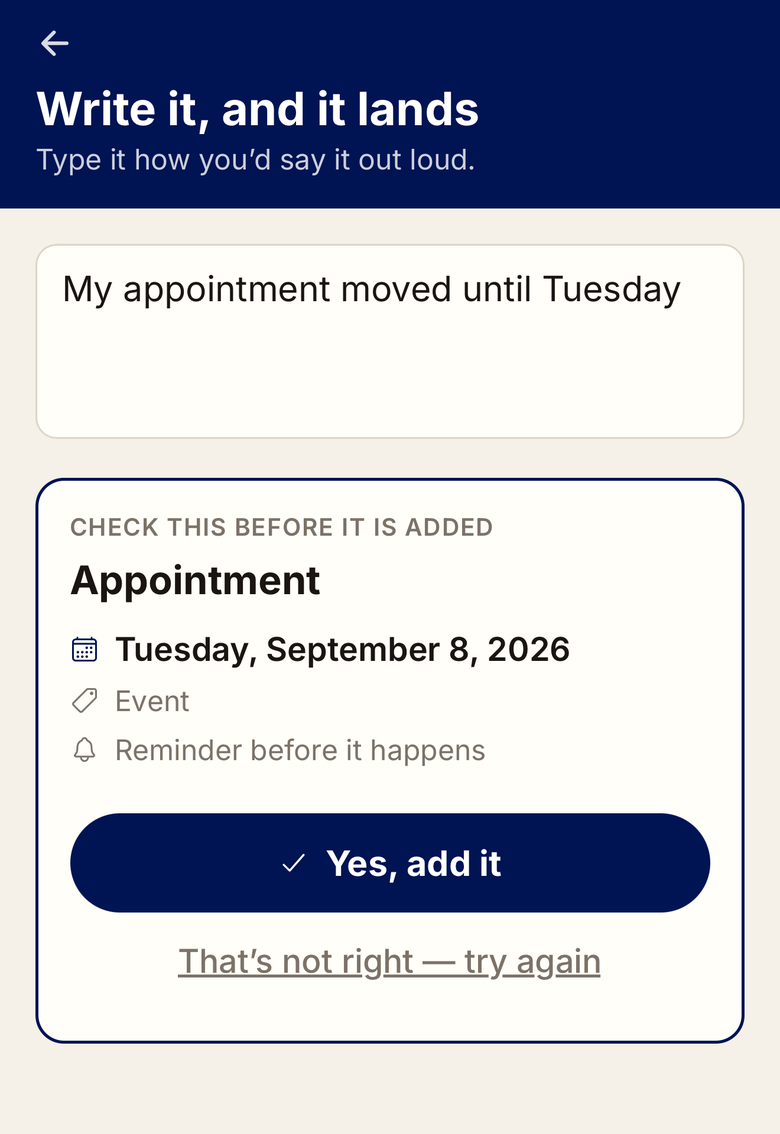
You type it in plain words. It works out the date and shows you the card. Nothing is saved until you tap Yes, add it.
Type the appointment the way you would say it out loud. You do not need a date — plain words work:
“set an appointment for next Tuesday at 2” · “the first Monday of next month at 9am” · “my appointment moved until Tuesday”
It works out the real date from words like next Tuesday or the first Monday of next month, then shows you a card with the full date spelled out before anything is saved. Check it, then tap Yes, add it. Nothing goes on your calendar without you confirming it first — that is deliberate, because a misread court date is not a small mistake.
Costs 1 credit. You can always add the event yourself from the calendar instead, for free.
13. Write a letter
The letters nobody teaches you how to start.
- Who is it going to? — Landlord, Employer, Probation officer, or Family.
- What does it need to say? Plain words are fine. Only what you write goes into the letter — nothing is invented.
- Sign it as your name.
- Then Write it. Costs 2 credits.
Read it before you send it. Change anything that does not sound like you, and check every date and name. It writes the letter. You are the one signing it.
Read it before you send it. Change anything that does not sound like you, and check every date and name. It writes the letter. You are the one signing it.
14. Settings
- Language — English or Español, change anytime.
- Account — change your password by email, change your email address or phone number, sign out, or delete your account.
- Subscription — your current plan, upgrade options, your AI credit balance, and buying more credits.
- Reminders & Notifications — push notifications (delivered by the app installed on your phone), deadline reminders on checklist steps, and email reminders. Email reminders need Basic.
- Your data — Export all data creates a file with your checklist, resume, job applications and document info. Save it and you can move to a new phone anytime.
- Privacy — turn AI data processing on or off, whenever you want.
- Contact — three separate lines so your question reaches the right place: help and feedback, billing and purchases, or privacy and your data.
- Install — add Free and Forward to your home screen.
Before you sign out, read the warning. Signing out removes your data from that device. Anything backed up to your account comes back when you sign in again — but documents that have not backed up yet are gone for good, and document names and custom sections live on that device only.
15. The plans
Every paid tier is a one-time purchase. Nothing renews, ever.
Free — $0
27-step checklist, goals, calendar with event reminders (delivered by the phone app), resource directory, cloud backup
Basic — $9.99
Document vault, photo-to-PDF, resume builder, deadline reminders by email
Plus — $24.99
Job board, application tracker, data export, PDF export
Premium — $34.99
The AI tools — resume and cover letter writing, the letter writer, typed appointments, AI job matching — plus 45 credits
Buying a lower tier now never costs you later: from Basic to Premium you pay the difference, not the full price again. The upgrade credit never expires.
The website costs about 23% less than buying through the App Store or Google Play, because Apple and Google take a fee on in-app purchases. Buy at freeandforward.com and sign in on your phone — same account, same features.
16. Questions people ask first
Does my probation or parole officer see any of this?
No. Not your checklist, not your location, not whether you opened the app. There is no agency-facing view — it does not exist.
What happens to my documents?
They are encrypted on your device before anything is backed up. We hold only the scrambled file and never the key, so we cannot read them. That is true on every tier, including free.
Is it tracked?
No location, no GPS, no check-in log. Reminders run off dates you entered, not where your phone is.
Can I delete everything?
Yes. One tap clears your checklist, documents and history off the device. The encrypted backups go with it, and everything else in your account is deleted within 30 days.
Can someone set it up for me before I come home?
Yes, and it is free to do. A partner, friend, parent or mentor can create the account, fill in what they know, and hand over the credentials on release day. Change the password once you are signed in and the account is entirely yours from that point.
Free and Forward LLC · Enfield, Connecticut. Not affiliated with any government agency, court, or supervision authority.




.svg)
.svg)